






How to Complete an Alternative Testing Agreement and Upload an Assessment in Disability Services Online (DSO)
Starting Fall 2020, the Office of Disability Services will begin using a platform which we call Disability Services Online (DSO). This new system includes a Faculty Portal, which allows instructors to view Letters of Accommodation for students in their courses and provide information about their assessments being proctored by Disability Services. Please review the following instructions pertaining to completing an Alternative Testing Agreement and uploading an assessment using the Faculty Portal.
Note: While we strongly encourage the use of the DSO Faculty Portal, the Alternative Testing Agreement can be reached via the link sent to your RMC email account at the beginning of the semester to reach the same page. The Alternative Testing Agreement must be completed in the Faculty Portal by the day prior to a student’s first scheduled assessment in the Disability Services testing space. Disability Services will not be able to proctor a student’s assessment if a Testing Agreement has not been submitted by their faculty member.
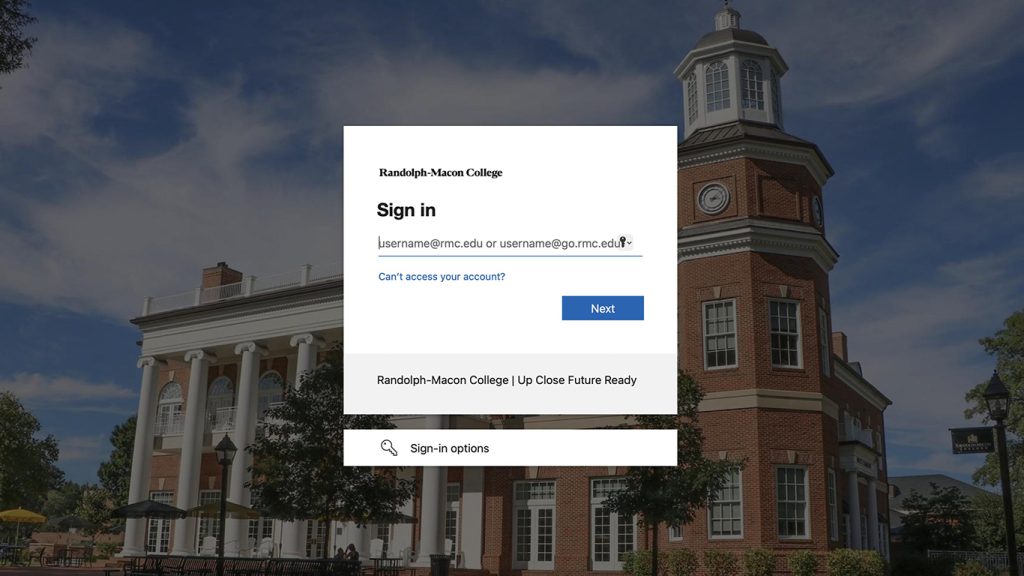
1. Go to the Randolph-Macon College’s “Welcome to Online Services” landing page by using the following link: https://bachelor.accessiblelearning.com/RMC/. Enter the same RMC credentials you use for your RMC email account. Include “@rmc.edu” when entering your username.
2. Each time you log-in to the Faculty Portal, you will be asked to read over a FERPA Confidentiality Statement before viewing a student’s accommodations. Once you have reviewed the statement, click “Continue to View Student Accommodations”.

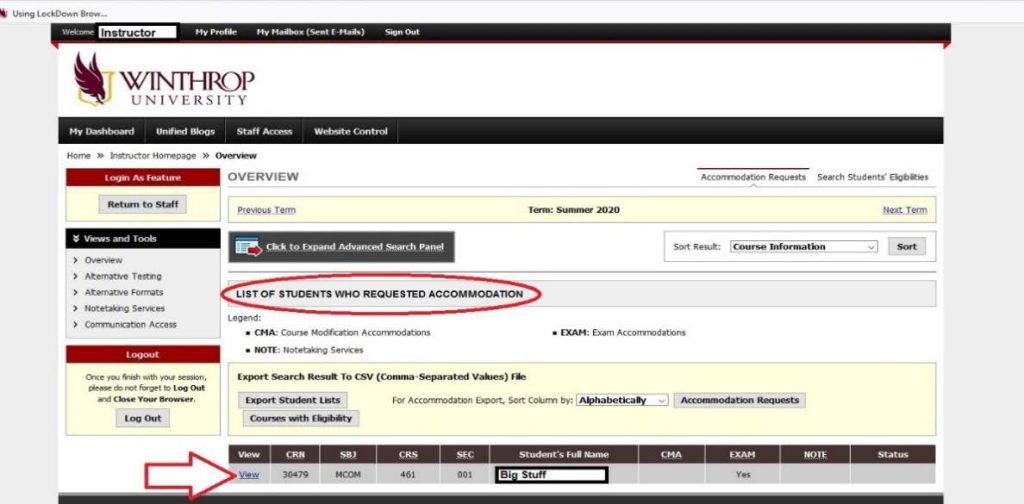
3. Now you can see an overview of all the students in your class who have sent their Letter of Accommodation to you. Refer to the legend to identify approved accommodations for each student. Select “View” to see a specific student’s Letter of Accommodation. A copy of the Letter of Accommodation will also be sent to your RMC email.
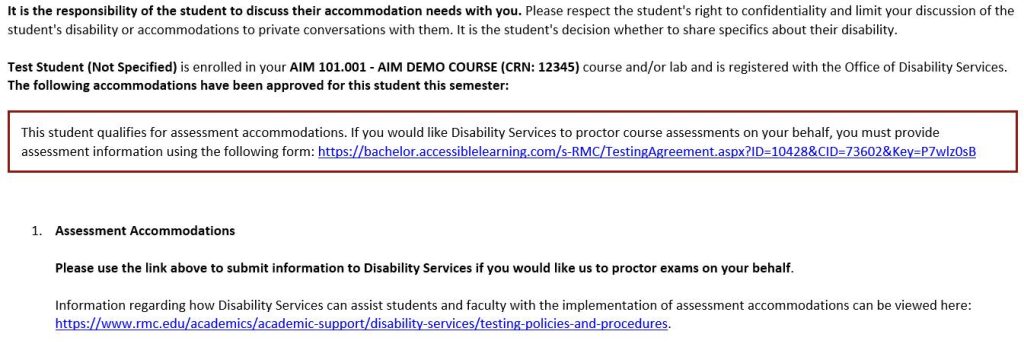
4. The Letter of Accommodation emailed to your RMC email account has a link to the Alternative Testing Agreement and information about the student who requested the accommodations.

5. In the “Specify Alternative Testing Agreement” box, choose the appropriate class from the drop-down menu then click “Continue to Specify Alternative Testing Agreement”. You will be directed to the Alternative Testing Agreement.

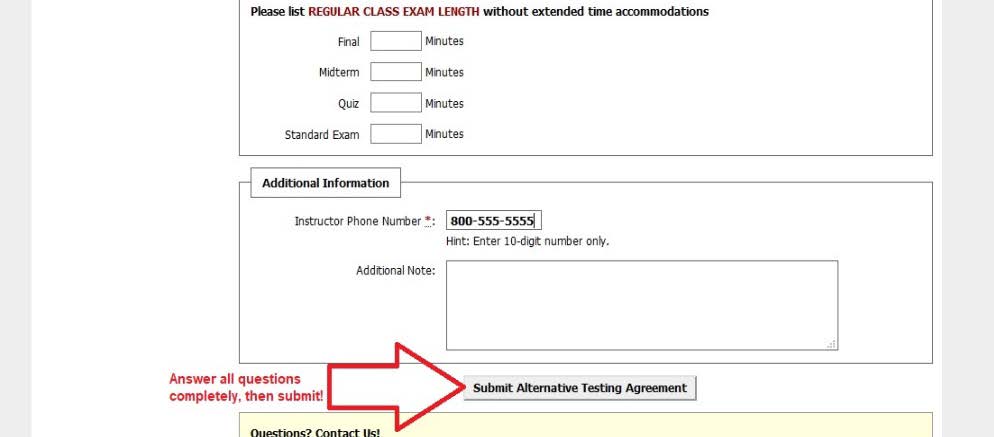
6. Answer all questions on the Alternative Testing Agreement fully. It will provide Disability Services with the parameters for different types of assessments in your course. Failure to complete all the requested information in the Testing Agreement may result in a delay in testing administration for students in the future. Note: The testing agreement will be applied to all students in that section registered for testing accommodations, so you will not need to complete a testing agreement for several students in the same course. Once complete, click “Submit Alternative Testing Agreement”.
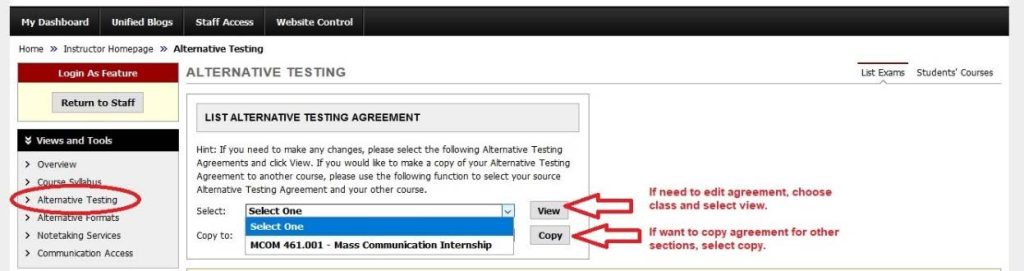
7. To edit an Alternative Testing Agreement, select the “Alternative Testing” tab found under “Views and Tools” from the Faculty Homepage. Inside the “List Alternative Testing Agreement” box, select the class you wish to edit and select “View”. If you simply wish to copy an agreement to a different section of your class (example: History 111 section 1 & 2 have the same tests), choose the class you want to copy an agreement to and select “Copy”.
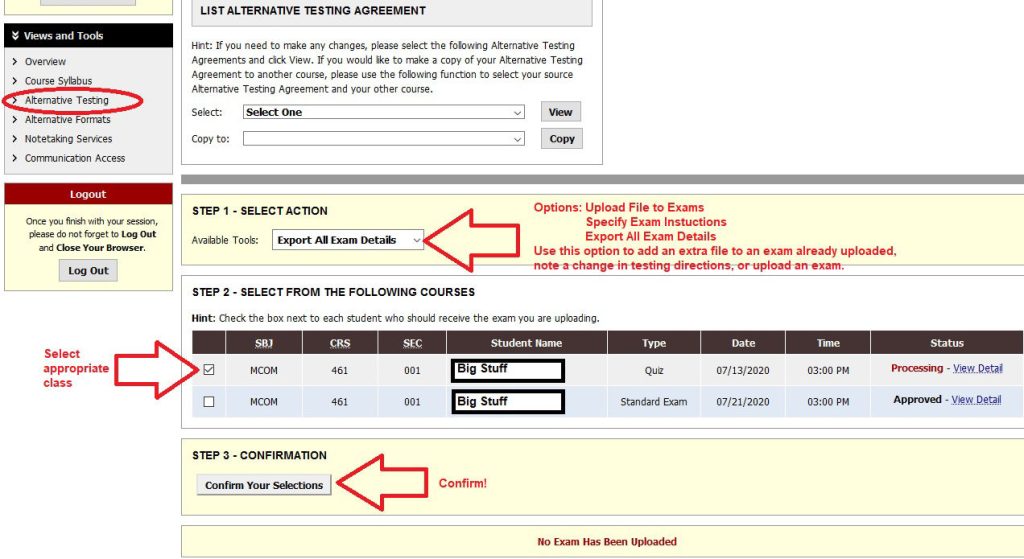
8. To upload a quiz/exam/final to the secure Faculty Portal, go to the “Alternative Testing” tab found under “Views and Tools” from the Faculty Homepage. In the “Step 1 – Select Action” box, choose from one of three options:
- “Upload File to Exams” – Add an extra file to assessment already uploaded
- “Specify Exam Instructions” – Note a change in assessment directions (Example: can only use a calculator on assessment 2)
- “Export All Exam Details” – Upload an assessment
In the “Step 2 – Select from the Following Courses” box, check the box next to each student who should receive the assessment you are uploading.
In the “Step 3 – Confirmation” box, select “Confirm your Selections”.
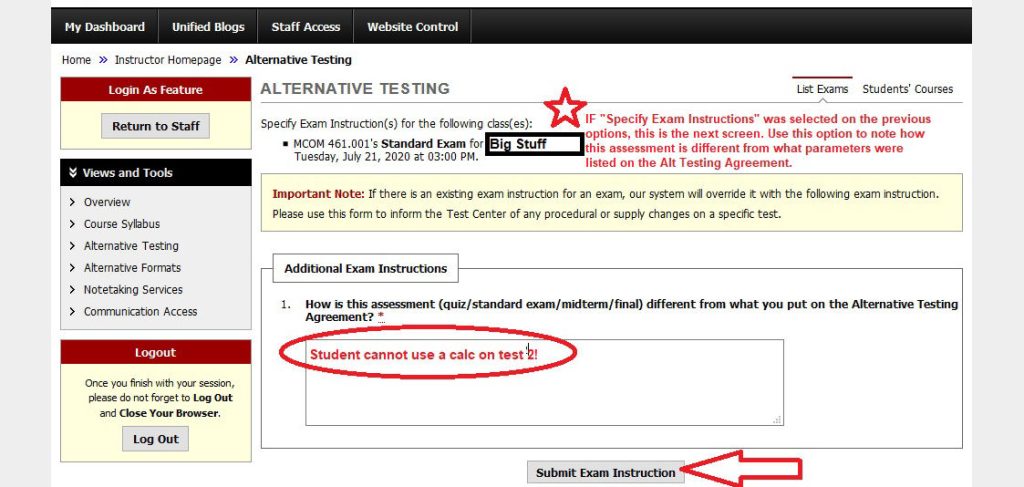
9. If you selected “Specify Exam Instructions” in the “Step 1 – Select Action” box in the previous image, you will be directed to answer a question in the “Additional Exam Instructions” box.
Example Question: How is this assessment (quiz/exam/final) different from what you put on the Alternative Testing Agreement?
Once an explanation has been entered, click “Submit Exam Instruction”.
*If you have any questions concerning the new DSO Faculty Portal testing features, contact the Office of Disability Services at DSS@rmc.edu or 804-752-3152. We are here to help you!